
Ever wondered what a domain for email really is?
Simply put, it’s the part of an email address that comes after the @ symbol. For an address like hello@emailgum.com, the domain is emailgum.com. Think of it as the unique "street address" for your emails on the internet, guiding your messages to the right digital mailbox every time.
Breaking Down Your Digital Address
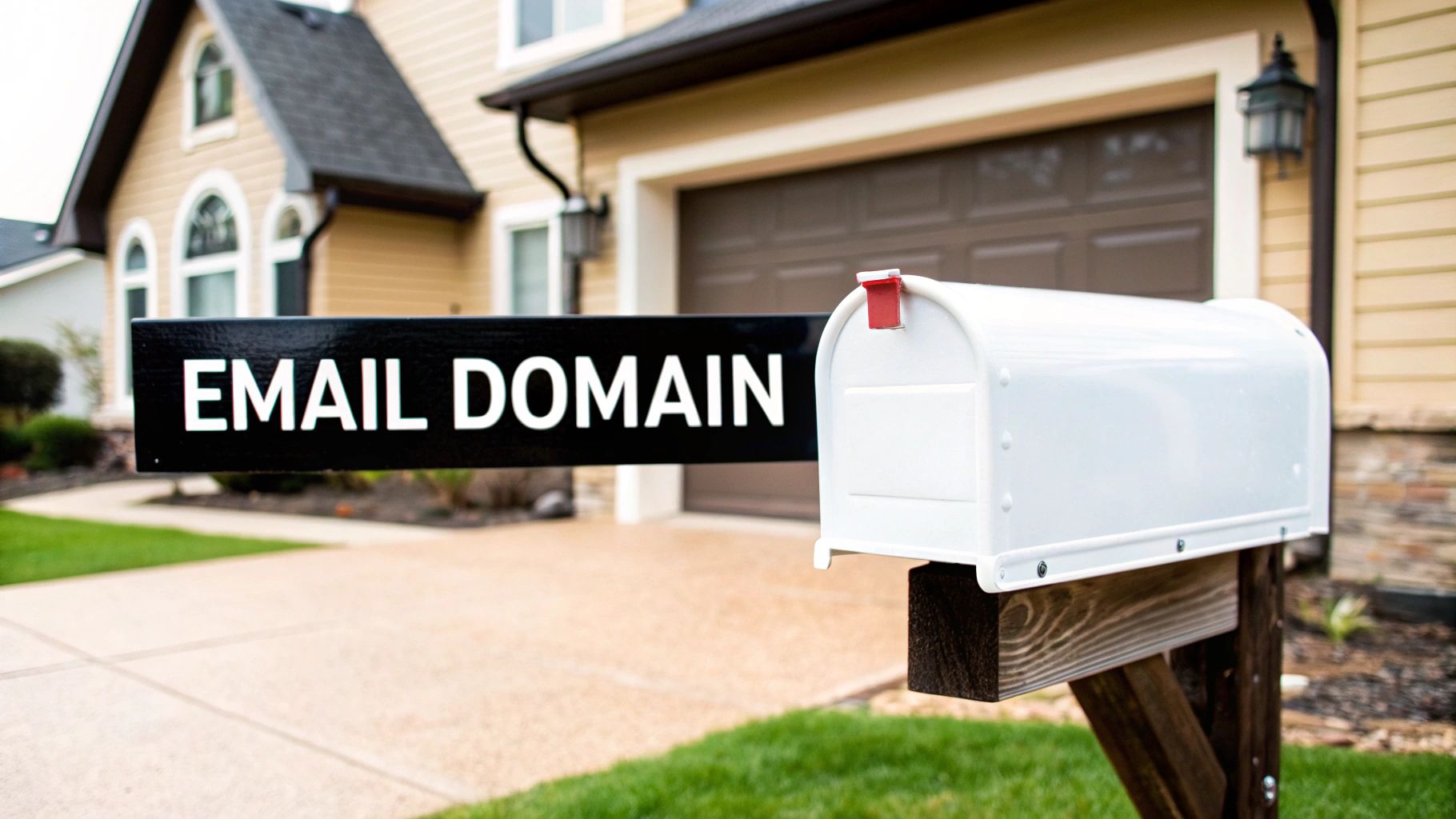
Let’s use a real-world analogy. Your entire email address works just like a physical mailing address.
The username (everything before the "@") is like your name on the mailbox—it identifies the specific person. The email domain, however, is the actual street address. It’s a unique location on the internet that tells the digital mail carriers precisely where to drop off your messages.
This "street address" is tied to a specific email server, which acts like a digital post office for every email associated with that domain. When someone sends a message to contact@yourbrand.com, the global email system looks up yourbrand.com to find its post office and deliver the letter.
You can get a deeper look into how an email server works in our detailed guide.
Email Domain vs. Website Domain: What's the Difference?
This is a common point of confusion. While an email domain and a website domain often share the same name (like yourbrand.com), they perform totally different jobs. A website domain points browsers to your website's location, while an email domain directs email traffic. They're related, but they're configured separately behind the scenes.
Email domains are the foundation of modern digital communication. By 2025, an estimated 4.83 billion email users will depend on them for both professional and personal messages. And that number is set to climb to 5.02 billion by 2026, which really underscores just how vital a proper domain is. For more stats on this, check out the email growth report on cloudhq.net.
To put it all together, let's break down a typical professional email address piece by piece.
The Anatomy of a Professional Email Address
| Component | Example | Its Purpose in Plain English |
|---|---|---|
| Username | jane.doe |
This is the unique identifier for a specific person or department within the organization. |
| "@" Symbol | @ |
The separator that literally means "at." It connects the user to their domain location. |
| Email Domain | yourcompany.com |
The custom "address" that represents your brand and tells servers where to send the email. |
Seeing it laid out like this makes it clear how each part has a specific role in getting your message from point A to point B. The domain is what gives your address—and your brand—a home on the internet.
Why a Custom Domain Is a Business Essential
Switching from a generic address like @gmail.com to a custom domain is one of the biggest little upgrades any business can make. It’s the difference between showing up to a client meeting in a t-shirt versus a tailored suit. Sure, both get you in the door, but only one immediately signals professionalism and authority. This isn't just about looking good; it's smart business strategy.

This simple change shows you’re a serious, established company. Every email you send reinforces your brand, making your business name stick and building a cohesive identity from the ground up.
Project Instant Professionalism
Put yourself in the shoes of a homeowner getting quotes for a big plumbing job. Two emails land in your inbox. One is from bobs.plumbing.service@yahoo.com, and the other is from contact@bobsplumbingservice.com. Which one feels more trustworthy?
Almost everyone would lean toward the second one. A custom domain communicates stability and a level of seriousness that a free, generic address just can't. It shows you’ve invested in building a proper business infrastructure.
The email world is dominated by a few giants. Gmail, for instance, is the largest single provider with roughly 1.8 billion accounts worldwide, making @gmail.com one of the most common sights in any inbox. It’s fantastic for personal use, but that same familiarity can make a business feel small-time or temporary. Standing out from that crowd is the first step toward building a professional image. You can see more data on the most popular email providers on clean.email.
Build Lasting Audience Trust
Trust is the currency of modern business, and a custom email domain is like a direct deposit into your credibility account. When customers, partners, or investors see an email from @yourcompany.com, they know they can pop over to yourcompany.com to check you out. That direct link creates a powerful sense of security.
A professional email domain acts as a digital seal of authenticity. It tells recipients that your message is official and comes from a verified source, reducing the risk of being dismissed as spam or a phishing attempt.
This isn't just a gut feeling; it’s a practical defense. Scammers love using generic-looking email addresses to impersonate businesses and trick people. When you use a custom domain, you make it significantly harder for them to mimic your brand, which protects both your reputation and your audience.
Boost Your Email Deliverability
Beyond branding and trust, a custom email domain offers a huge technical advantage: improved email deliverability. This is a practical term for making sure your emails actually land in someone's main inbox instead of getting lost in the spam folder.
Email clients and internet service providers (ISPs) like Gmail and Outlook simply trust emails from custom domains more. Here’s a quick rundown of why:
- You Control Your Reputation: With a custom domain, you build your own sender reputation from zero. Every good email you send builds a positive score that isn't dragged down by spammers on a massive public domain.
- You Can Use Authentication: A custom domain lets you set up essential email authentication records—SPF, DKIM, and DMARC. Think of these as digital signatures that prove your emails are legit and haven't been tampered with, which is a huge green flag for spam filters.
- You Avoid Spam Association: Free email services are constantly fighting off spammers, which means their domains can sometimes get flagged by aggressive filters. Your own domain cuts you free from that potential baggage.
At the end of the day, a custom domain isn’t just a cosmetic tweak. It’s a strategic tool that directly impacts how customers see you, how secure your communications are, and whether your messages even get seen. That makes it an undeniable business essential.
How to Choose Your Email Domain Provider
Okay, you're sold on getting a custom email domain. Now for the next big decision: choosing a provider. This isn't just about getting a fancy email address. You’re picking the platform that will handle your team's day-to-day communication, store critical data, and often, become the backbone of your entire workflow.
Think of it like choosing a business partner. You need someone reliable, packed with the right features, and ready to scale with you. The good news is the major players are all fantastic, but they’re built for slightly different kinds of businesses. Some are all about seamless, cloud-based collaboration, while others focus on deep integration with desktop software or pure affordability.
The Top Contenders for Your Business Email
You’re going to run into three big names almost immediately: Google Workspace (formerly G Suite), Microsoft 365 (formerly Office 365), and Zoho Mail. Each one offers a powerful suite of tools that go way beyond just sending and receiving messages.
Of course, before you can hook up any of these services, you need to make sure your dream domain name is actually available. For a complete walkthrough on that, check out this in-depth guide on checking domain availability. Once you've secured your brand's digital home, you can connect it to one of these services.
So, what makes each one tick?
- Google Workspace: This is the go-to for businesses that live and breathe collaboration in the cloud. It’s built around the Gmail interface everyone already knows, so the learning curve is practically zero. You also get industry-leading tools like Google Docs, Sheets, Drive, and Meet baked right in.
- Microsoft 365: If your company is already rooted in the Microsoft ecosystem, this is a no-brainer. Teams that run on Word, Excel, and PowerPoint will feel right at home. It excels at deep integration with desktop apps and comes with robust, enterprise-grade security features.
- Zoho Mail: An absolute powerhouse for startups and small businesses that need a budget-friendly solution without sacrificing features. Zoho offers an incredibly generous free tier and its paid plans are competitively priced, often bundling in other business essentials like a CRM.
Choosing your email provider is a foundational business decision. It directly impacts your team's productivity, your data's security, and how easily your operations can scale. The best choice is the one that supports how your team actually works.
If you want to explore even more options and get into the nitty-gritty details, we've also put together a complete guide to the best business email providers.
Comparing Key Features and Costs
The right choice often becomes clear once you see the options side-by-side. For most businesses, it boils down to three things: cost, ease of use, and what’s included in the box. One plan might seem cheaper at first glance, but another could offer way more value with bundled software like video conferencing or massive cloud storage.
A solopreneur, for example, might find Zoho Mail’s free plan to be the perfect way to get started with a professional address. But a growing marketing agency will likely find the real-time collaboration in Google Docs indispensable and opt for Google Workspace. Meanwhile, a more traditional office crunching complex spreadsheets will probably lean into the familiar power of Microsoft 365.
This table gives you a quick snapshot of how the top services stack up on the features that matter most.
Comparing Top Email Hosting Services
Deciding between the "big three" can feel tough, but it often comes down to your team's existing workflow and budget. Each platform offers a reliable, professional email experience, but their strengths lie in different areas. This comparison should help clarify which one is the best fit for your business.
| Key Feature | Google Workspace | Microsoft 365 | Zoho Mail |
|---|---|---|---|
| Starting Price | Starts around $6 per user/month | Starts around $6 per user/month | Offers a free plan for up to 5 users |
| Core Strengths | Real-time collaboration, intuitive UI, cloud-native tools | Deep integration with desktop Office apps, enterprise security | Unbeatable value, bundled business apps (CRM, Projects) |
| Included Storage | Starts at 30 GB per user (cloud) | Starts at 1 TB per user (OneDrive) | Starts at 5 GB per user (Mail) on the free plan |
| Best For | Startups, remote teams, and businesses that prioritize collaboration | Established businesses, teams reliant on Office software | Solopreneurs, budget-conscious startups, and small businesses |
Ultimately, there's no single "best" provider—only the one that's best for you. Whether you prioritize the collaborative power of Google, the corporate muscle of Microsoft, or the incredible value of Zoho, you’ll be building your brand on a solid foundation.
Your Step-by-Step Guide to Setting Up a Custom Email
Ready to set up your professional email? This step-by-step guide will walk you through the entire process, from choosing your domain name to sending your first email from a custom address. It’s a small project that makes a huge impact on your brand's credibility.
The entire process boils down to three key phases: choosing your domain, buying it, and then hooking it up to an email service. This flowchart gives you a bird's-eye view of the path ahead.

It might look technical, but it’s a straightforward, logical sequence that any business owner can tackle.
Step 1: Choose and Purchase Your Domain Name
First, you need to claim your digital address—the yourcompany.com part of your new email. Pick a name that’s short, memorable, and clearly represents your brand.
Once you have the perfect name, you'll buy it from a domain registrar like GoDaddy, Namecheap, or Google Domains. You're essentially leasing the exclusive rights to that name for an annual fee. If you're new to this, getting a handle on understanding domain name registration is a great starting point.
Step 2: Select Your Email Hosting Provider
With your domain secured, it’s time to choose where your email will "live." This is your email hosting provider. As we discussed, services like Google Workspace or Microsoft 365 are heavy hitters, bundling email with a full suite of business tools.
Sign up for a business plan that fits your needs. Think of it like this: you bought the plot of land (your domain), and now you're choosing a company to build your house and manage your mail (your email host).
Step 3: Connect Your Domain to Your Email Host
This is where we get a little technical, but it’s simpler than it sounds. You’ll need to update your domain's DNS (Domain Name System) records. The DNS is the internet's address book; it tells traffic where to go, whether for your website or your email.
You'll log into your domain registrar's control panel and add a few records provided by your email host:
- MX Records (Mail Exchanger): This is the most important one. An MX record tells the internet, "Send all email for
yourcompany.comto this specific mail server." - TXT Records for Verification: Your email host will also give you a unique string of text to add as a TXT record. This is a security step to prove you own the domain.
Your provider will give you the exact values to copy and paste. It's a quick but crucial step to get your mail flowing to the right inbox.
Step 4: Configure Email Authentication Records
This last step is non-negotiable if you want your emails to land in people's inboxes. Email authentication records prove that your messages are legitimate and not spam. This is a game-changer for your deliverability.
Think of authentication records as a digital seal on a letter. They prove the message is from you and hasn't been tampered with, which builds immense trust with email clients like Gmail and Outlook.
You'll add two more records to your DNS settings, provided by your email host:
- SPF (Sender Policy Framework): A public list of all the servers authorized to send email on behalf of your domain.
- DKIM (DomainKeys Identified Mail): Adds a tamper-proof digital signature to your emails, verifying they haven't been altered.
Getting these settings right is fundamental to building a strong sender reputation. For a deeper dive, our guide shows you how to improve email deliverability with more advanced strategies.
Once these records are in place, they need a little time to spread across the internet (usually just a few hours). After that, you're all set to create user accounts and start sending professional emails.
Common Mistakes to Avoid With Your Email Domain
Setting up a custom email domain is one of the smartest moves for your brand. But a few common missteps can undermine your professionalism and land your messages in the spam folder. Let’s walk through the most frequent mistakes and how to sidestep them.
Mistake 1: Choosing a Clumsy Domain Name
One of the first hurdles is picking a name that's long, confusing, or hard to spell. A domain like janes-gourmet-catering-and-events-nyc.com is a mouthful. It’s a nightmare for customers to type and looks amateurish on a business card. Every extra word or hyphen is another chance for a typo, leading to bounced emails and lost leads.
Actionable Takeaway:
- Keep it short and memorable: Aim for a domain that reflects your brand name, like
janecaters.com. - Make it easy to spell: Ditch hyphens, numbers, and weird spellings. If you have to spell it out over the phone, it’s too complicated.
- Stick to .com: Unless you have a strategic reason not to,
.comis still the most recognized and trusted domain extension.
Mistake 2: Using Generic or Unprofessional Usernames
You've got your domain. Now, what about the part before the "@" symbol? Sending a sales proposal from admin@yourcompany.com feels impersonal. On the flip side, trying to be too clever with marketingguru@yourcompany.com can come off as cringey.
Actionable Takeaway:
- For personal outreach: Use a real name, like
jane.doe@yourcompany.com. - For departments: Create role-based addresses like
sales@,support@, orbilling@yourcompany.com. - For general inquiries: A friendly
hello@orcontact@yourcompany.comworks perfectly.
These aliases are simple to set up and make your business look organized from the get-go.
Mistake 3: Skipping Essential Email Authentication
This is the big one. Failing to set up SPF (Sender Policy Framework) and DKIM (DomainKeys Identified Mail) is like sending a letter with no return address. To spam filters, you look incredibly suspicious.
Without authentication, you're telling email providers like Gmail and Outlook, "I can't prove this message is really from me." As a result, even your most important emails have a much higher chance of landing in the junk folder.
These records are simple text files in your DNS settings that prove your domain is who it says it is. Your email provider will give you the exact values to copy and paste.
Actionable Takeaway:
As soon as your custom email is active, log into your domain registrar and add the SPF and DKIM records provided by your email host (like Google Workspace or Microsoft 365). It’s a one-time setup that takes 10 minutes and protects your domain for years to come.
Summary & Your Next Step
Let’s wrap this up. A custom email domain isn't just a technical detail—it’s a core business asset that builds instant credibility, creates trust with your audience, and ensures your important messages land in the inbox. You now have a solid grasp of what a domain for email is, why it's fundamental to your brand, and how to set one up while avoiding common pitfalls.
Your Recommended Next Step:
Take one simple action today: research and choose a domain name that proudly and clearly represents your brand. Securing your domain is the first, most important step toward building a professional communication strategy.
Frequently Asked Questions About Email Domains
Getting your own custom email domain can bring up a lot of questions. Let's walk through some of the most common ones that pop up for business owners and marketers.
Can I Have an Email Domain Without a Website?
Absolutely. You can set up a professional email with a custom domain even if you have no plans to build a website. Your email and website are separate services that can share the same domain name.
For example, you could buy yourbrand.com and connect it to an email provider like Google Workspace or Zoho Mail without ever putting a single page online. This is a smart move for freelancers, consultants, or any new business that wants to look professional from day one.
What’s the Difference Between an Email Alias and a User Account?
Understanding this can save you money and headaches.
An email alias is a forwarding address, not a real inbox. Emails sent to an alias (like
info@yourbrand.com) are simply rerouted to a real user’s inbox (likejane.doe@yourbrand.com). Aliases are typically free.A user account is a full-blown inbox with its own login, storage, and password. This is what you create for an actual person on your team. Each user account usually has a monthly fee.
Use aliases for general contact points (support@, sales@) and user accounts for individual team members.
Is It Safe to Use My Custom Domain for Email?
Yes—in fact, it’s much safer than using a free email service, as long as it's set up correctly. A custom domain gives you control over your security.
By setting up email authentication records like SPF and DKIM, you make it incredibly difficult for scammers to impersonate your domain. This protects your brand's reputation and shields your customers from phishing attacks.
Free email services are prime targets for impersonation because anyone can create a similar-looking address. Your unique domain acts as a verifiable digital ID, adding a serious layer of trust and security.
How Much Does a Custom Email Domain Cost?
The cost breaks down into two parts:
- Domain Name Registration: This is the yearly fee to own your domain (e.g.,
yourbrand.com). It usually costs $10 to $20 per year through a registrar like Namecheap or GoDaddy. - Email Hosting Service: This is the monthly or annual fee for the service that handles your email. Zoho Mail offers free plans for a few users, while premium services like Google Workspace and Microsoft 365 start around $6 per user per month.
All in, a single user can get set up with a professional email address for as little as $10-$20 a year.